
Enable the Save Gallery
The save gallery reads your game save, shows the items you have collected by category, and lets you compare several items side by side.
Prerequisite
Section titled “Prerequisite”The save gallery needs the SuperDucky.Connector mod installed in the game. It provides the game data to SuperDucky. The mod is published on NuGet, so first enable the NuGet market.
Install and enable
Section titled “Install and enable”1. Install SuperDucky.Connector
Section titled “1. Install SuperDucky.Connector”In the mod market, switch to NuGet Gallery, search for SuperDucky.Connector, open its details, and click Install. It installs the version marked “Latest” by default.
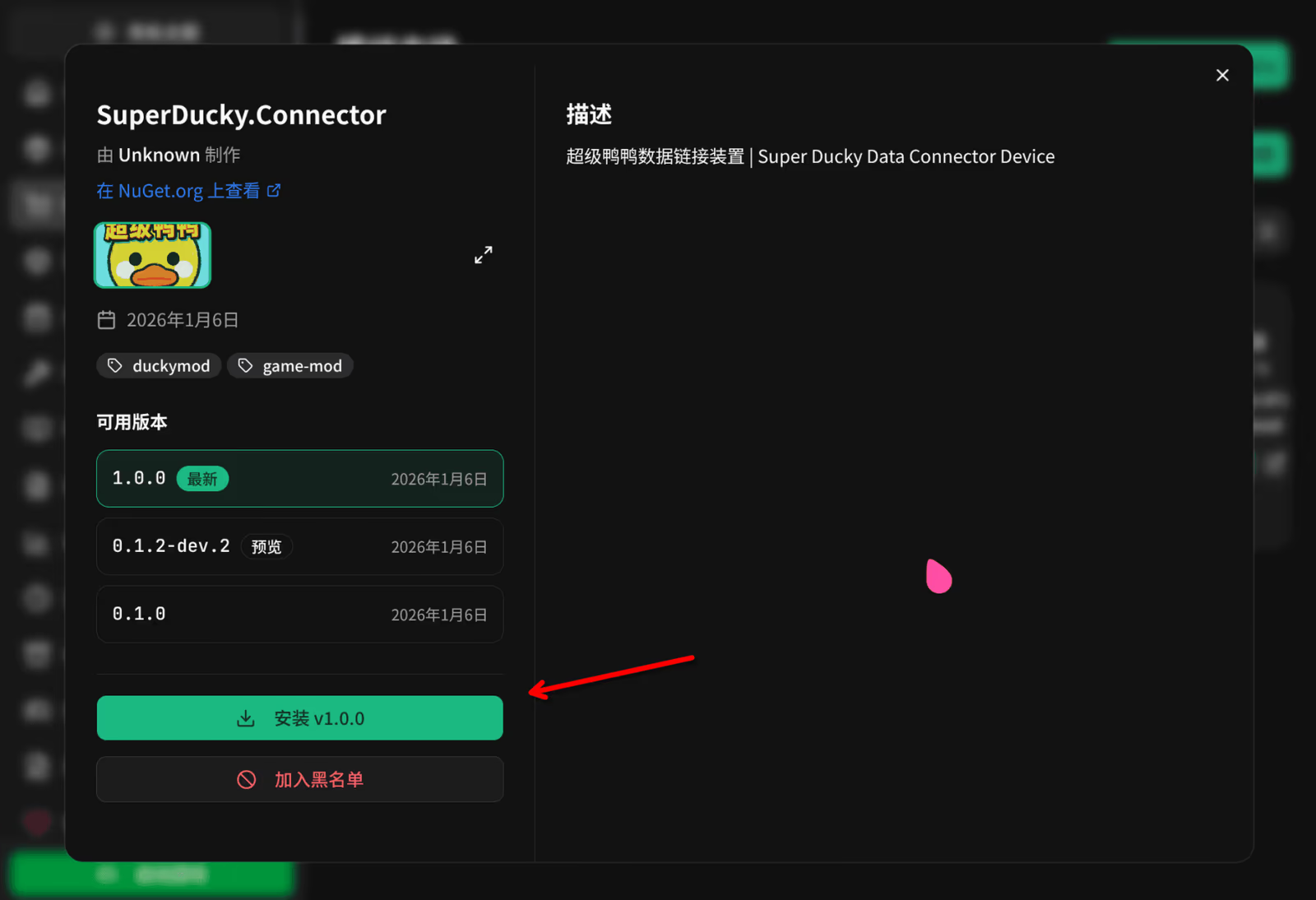
2. Turn on the feature
Section titled “2. Turn on the feature”Go to Settings → Save Gallery and switch on “Save Gallery”.
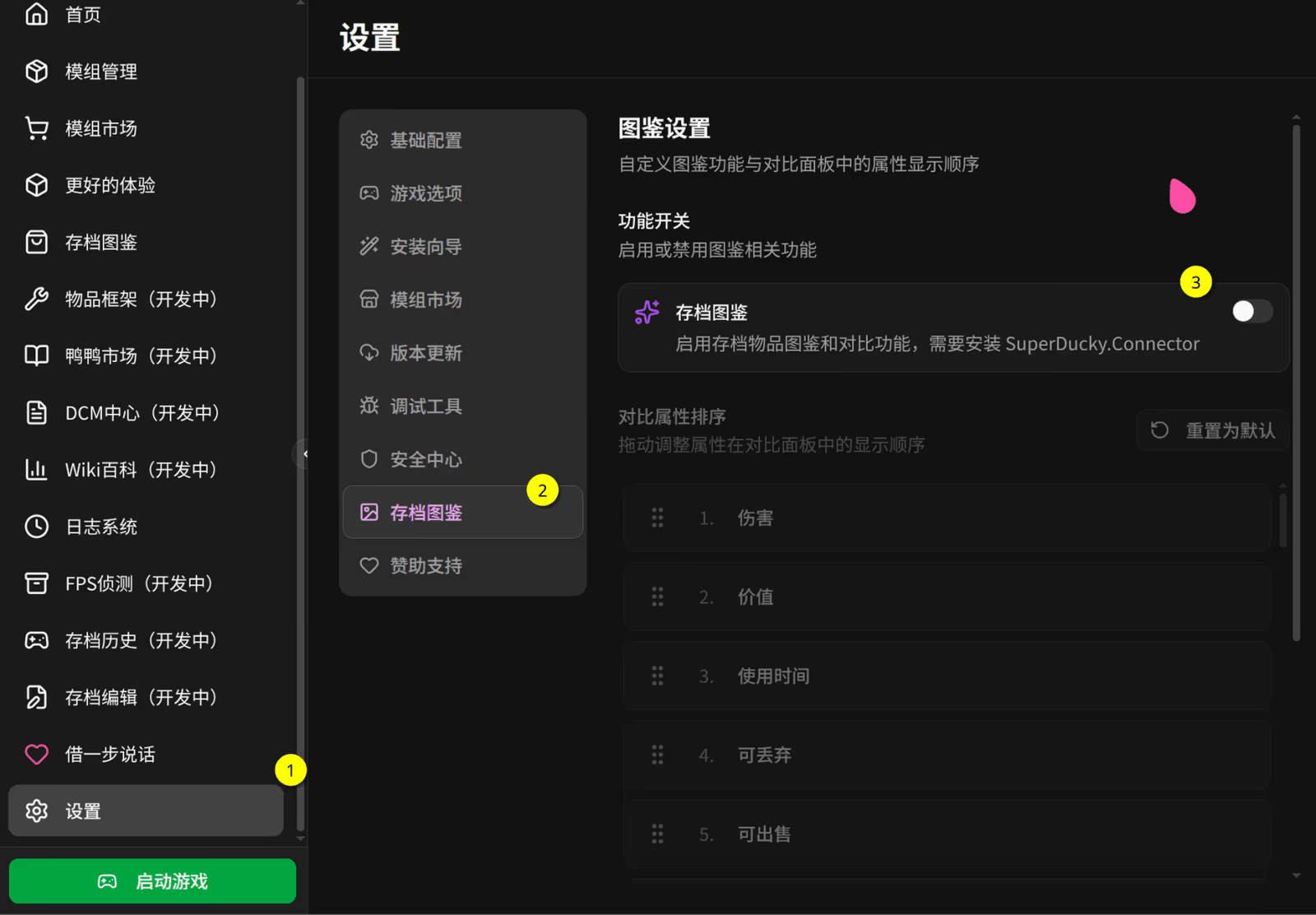
This page also lets you drag to reorder the attributes shown in the comparison panel. “Reset to default” restores the order.
Browsing the gallery
Section titled “Browsing the gallery”Once enabled, click Save Gallery in the left sidebar. The page shows the collection progress of the current save and the items by category.
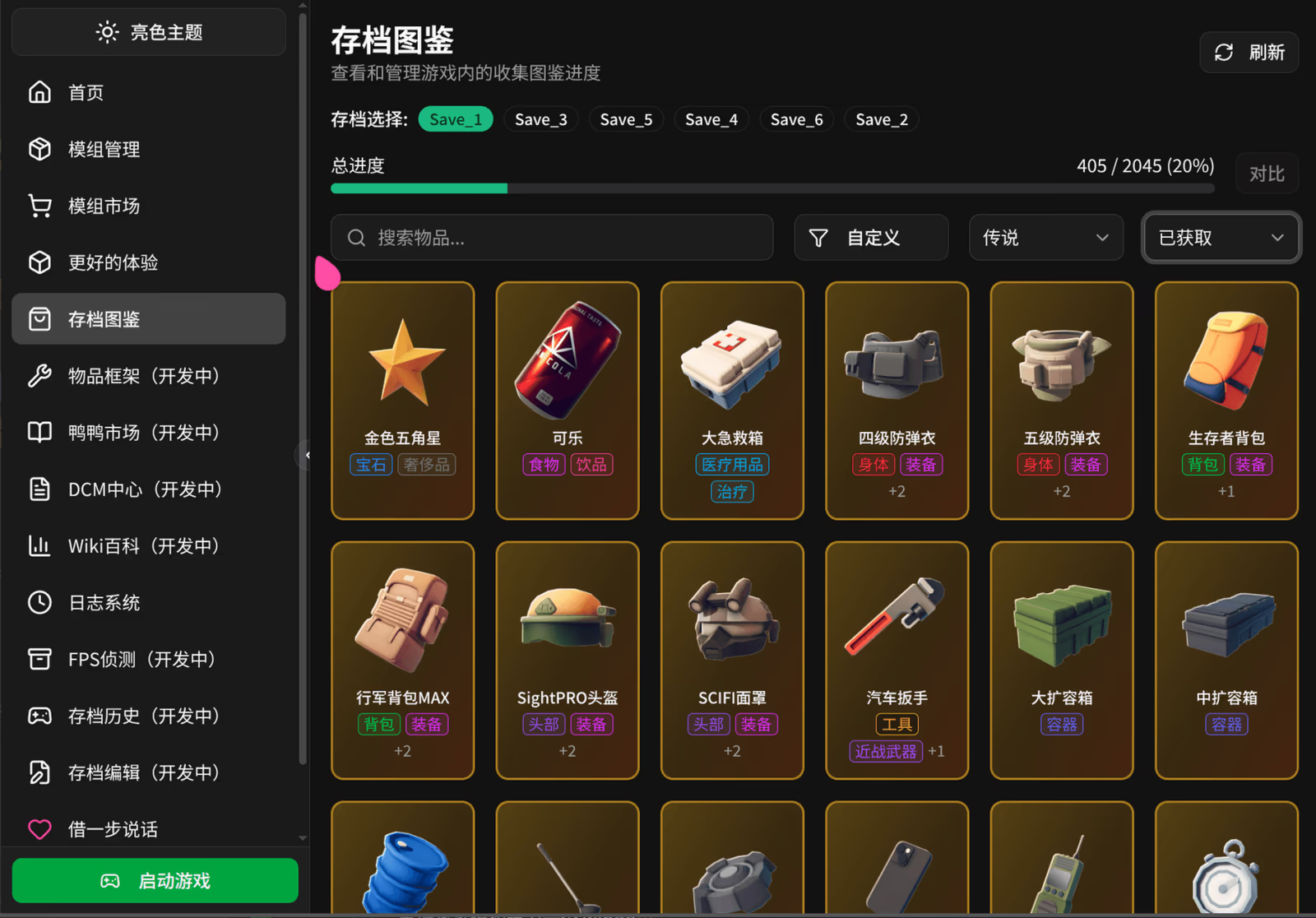
- Switch between grid view and list view.
- Filter by tag.
- The search box filters by item name and description as you type.
- The first load can take a while because the save is scanned. After that, SuperDucky checks whether the save changed and rescans only if it did. You can also click the refresh button to reload manually.
Comparing items
Section titled “Comparing items”Put several items side by side to see how their attributes differ.
Add items to compare
Section titled “Add items to compare”- Right-click an item and choose “Add to compare”.
- Or left-click an item to open its details and click “Add to compare”.
View the comparison
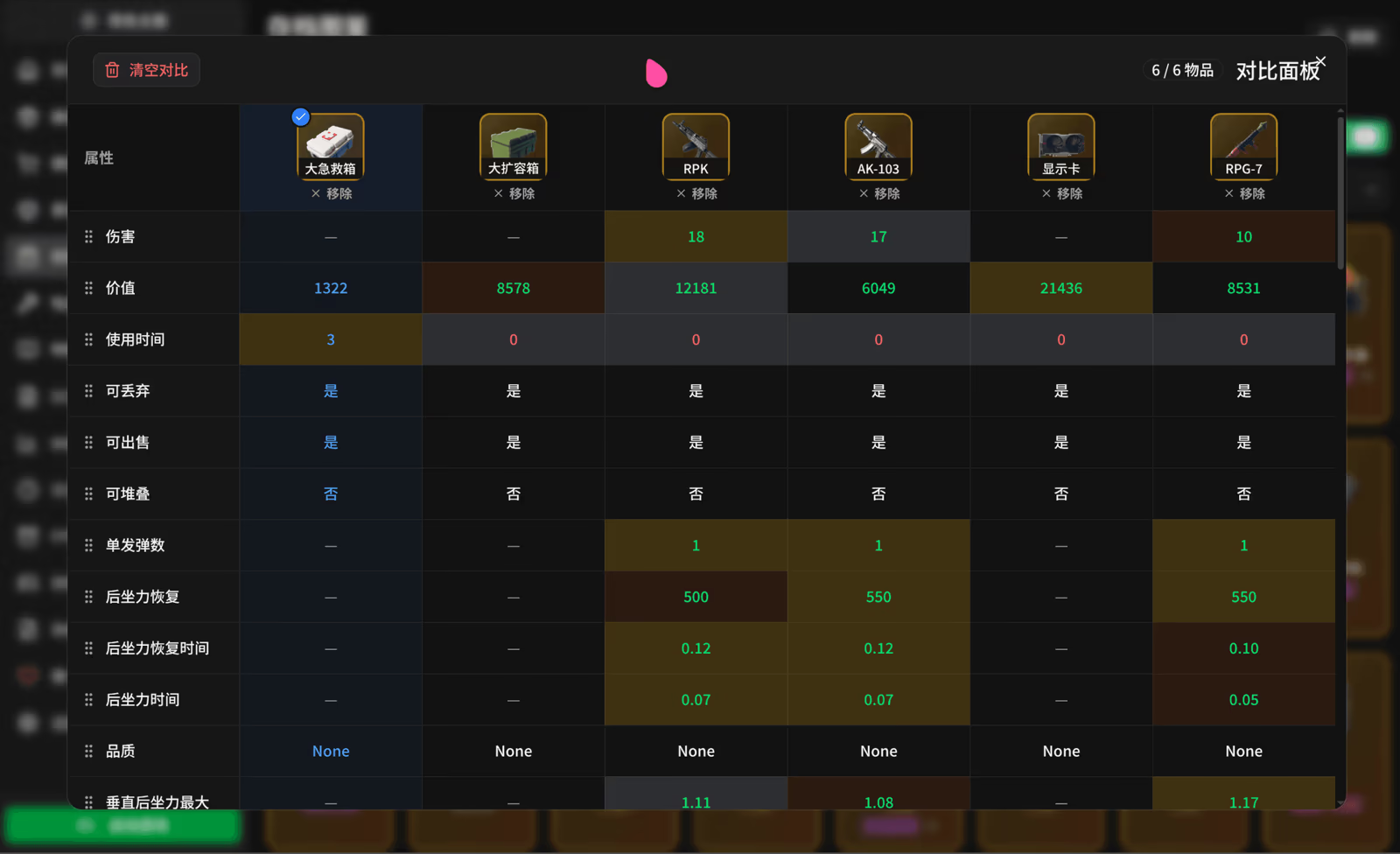
Section titled “View the comparison”After adding items, click the compare button at the top right of the list.
- You can compare up to 6 items at a time.
- Pick any one of them as the baseline to see how the others differ from it.
Item types
Section titled “Item types”Simple items
Section titled “Simple items”Basic game items, showing the essential information.
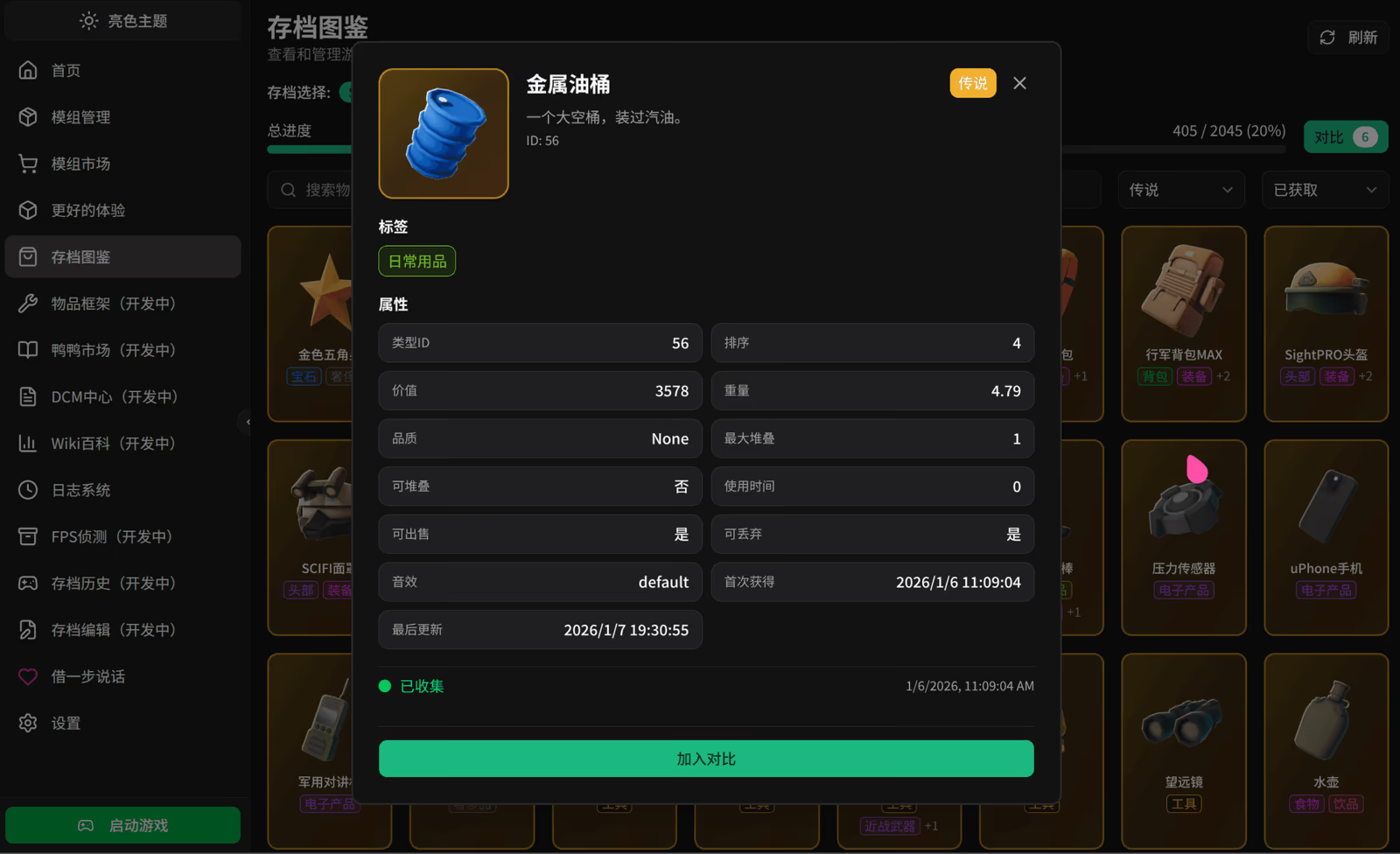
Complex items
Section titled “Complex items”Items with more attributes. The gallery shows the full attribute list.
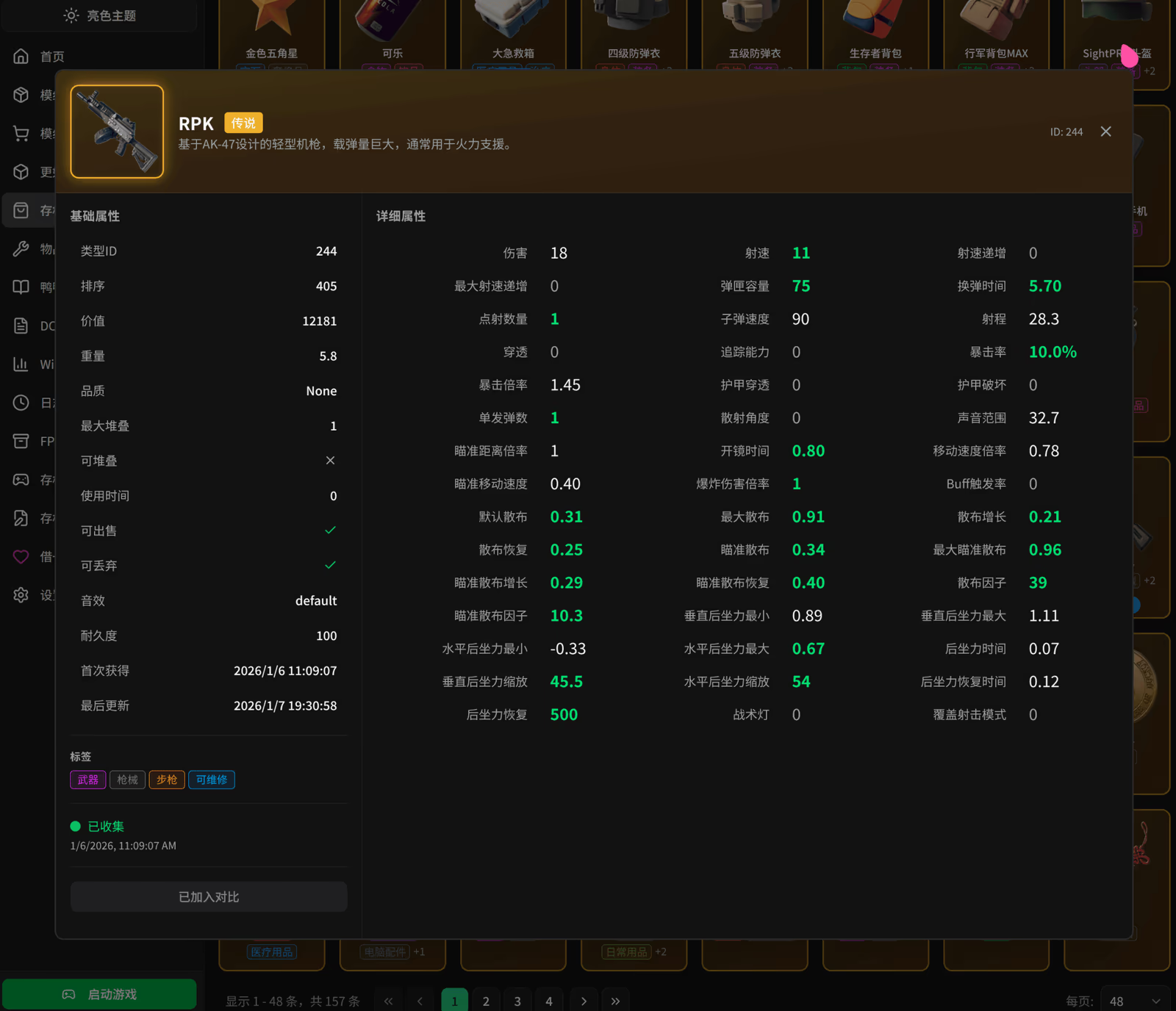
Mod items
Section titled “Mod items”If you have mods that add items, the gallery recognizes and shows them too.
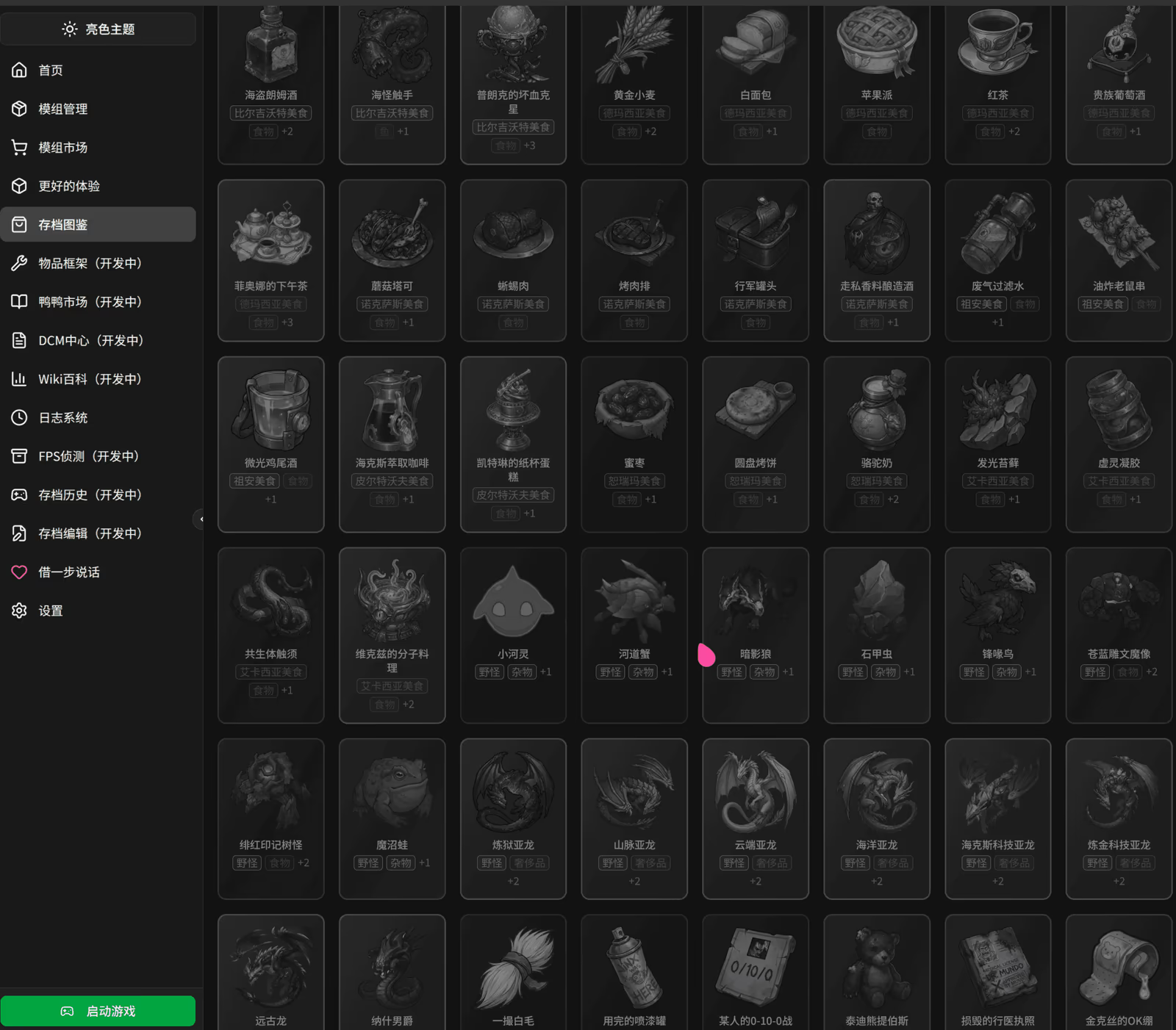
HagiCode
HagiCode is an agentic coding workspace. Rich, convenient UI interactions make planning, agent execution, and project work approachable and easy to navigate, creating an engaging development experience.
Explore an engaging development experience through rich, convenient UI interactions.

- SmartOpenSpec workflows turn intent into an executable path, from proposal to design, tasks, and a shipped change.
- EfficientMulti-agent execution keeps research, implementation, and review moving in parallel, across several repositories and the Agent CLIs you already use.
- InterestingRich, convenient UI interactions make planning, agent execution, and project work approachable and easy to navigate.
Download for Windows
Share HagiCode

Turn ideas into shipped software.
HagiCode is an agentic coding workspace. OpenSpec workflows plan the change, multi-agent execution carries it out, and Hero Scenario makes the long run visible, so ideas become shipped software.
- Smart
- OpenSpec workflows turn intent into a path from proposal to shipped change.
- Efficient
- Multi-agent execution runs research, build, and review in parallel.
- Fun
- Rich UI interactions make planning, agent work, and projects easier to follow.
© 2026 HagiCode | Powered By hagilight-starlight@0.20.0 | Branch: main | Commit: d34e52c | Built: